Minecraft Pixel Art Generator Schematic Export Guide
This Minecraft pixel art generator schematic export guide explains how to import .schematic files, when to choose schematic instead of commands or block counts, and how to place exports in-game.
1) What is a .schematic?
A .schematic file is a legacy WorldEdit schematic format that stores blocks and their metadata.
This site can import .schematic into the editor and can also export a pixel-art result as .schematic.
2) Import into the editor
- Open the Classic Editor.
- On Start, choose a
.schematicfile. - If the import succeeds, you can continue through Settings → Editor → Convert.
3) Export options from this site
After editing, go to Convert and choose an export method:
- Command block / Raw commands — paste in-game (syntax depends on selected Minecraft version).
- .mcfunction — download a function file and run it in a datapack-friendly workflow.
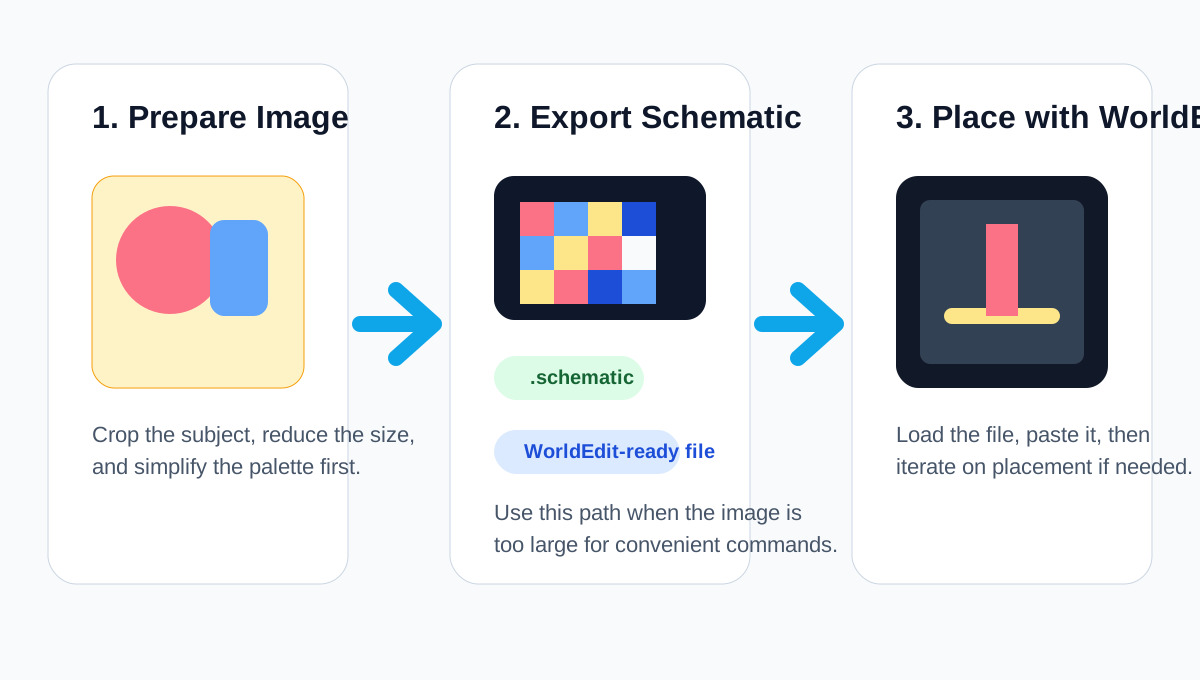
- .schematic — download a WorldEdit schematic for placement (when supported by your tooling/version).
- Manual — a block count list for hand building.
4) When to use .schematic, .mcfunction, or block counts
Most users do not need every export format. The right choice depends on how large the image is, how you build, and whether you already use WorldEdit.
- Use
.schematicwhen you want a WorldEdit-friendly file for faster placement, especially for larger murals or repeated test placements. - Use
.mcfunctionwhen the output is too long for easy command pasting but you still want a command-based workflow. - Use block counts only when you are building by hand in survival and mainly need a shopping list for materials.
- Use command blocks for smaller, quick builds where pasting a few pages is still manageable.
.schematic. If you need commands but the output is long, choose .mcfunction. If you are placing blocks manually, use block counts.5) Why schematics are better for large image builds
Large image builds create longer exports, bigger placement areas, and more chances for paste mistakes. That is where schematic export becomes more practical than raw commands.
- Less command-length friction: you avoid giant pasted command chains and command block page juggling.
- Faster iteration: if you test multiple sizes or placements, a schematic is easier to load and paste again.
- Cleaner placement workflow: WorldEdit is usually easier to manage than copying long outputs line by line.
- Better fit for large murals: the larger the image, the more likely schematic export will save time and reduce mistakes.
6) Place in Minecraft (WorldEdit / commands)
Common placement paths:
- WorldEdit: load your
.schematicin your WorldEdit schematics folder and paste it where needed. - Datapack: use the exported
.mcfunctionoutput. - Command blocks: use the multi-page command block output for quick testing.
7) Limitations & tips
- Format mismatch: many modern workflows use
.schem; this site focuses on.schematic. - Pixel art depth: imported pixel-art schematics are expected to be “flat” (one-block thick) in one dimension.
- Height limits: Minecraft height rules vary by version; keep builds within your world limits.
FAQ
How do I turn images into block plans? Start from the Minecraft Pixel Art Generator homepage, open the Classic Editor, and then read the Pixel Art Complete Guide if you need a full workflow.
What if my build is too tall? Clamp height to 256 or split into stacked segments; check world height rules for your version.
Which export should I pick? Use .mcfunction / commands for broad compatibility, or .schematic if your WorldEdit workflow supports it.
Minecraft Pixel Art Generator Home · Open the Classic Editor · Pixel Art Complete Guide · Back to Tutorials